Why is that in some cases images appear either totally pixelated or as a minute little graphics when generating an EPUB document from an existing InDesign file that was not originally created for EPUB purposes? The answer is found by taking a closer look at how our images are placed in InDesign as well as looking at the selected Digital Editions Export Options we’re using for Images when generating our EPUB files.
Note: Samples provided in this write-up were created with InDesign CS5 (7.0.2) and Digital Editions Export 3.0.0
Unravelling the image size and quality mystery
Let’s start by taking a look at an image that’s been placed in an InDesign document. I admit I’ve exagerated things a little here 🙂 to really emphasise what’s going on behind the scenes.
A closer look at the image in InDesign in the Links and Control panels reveals information that will help us understand what’s happening to our placed images during EPUB export.
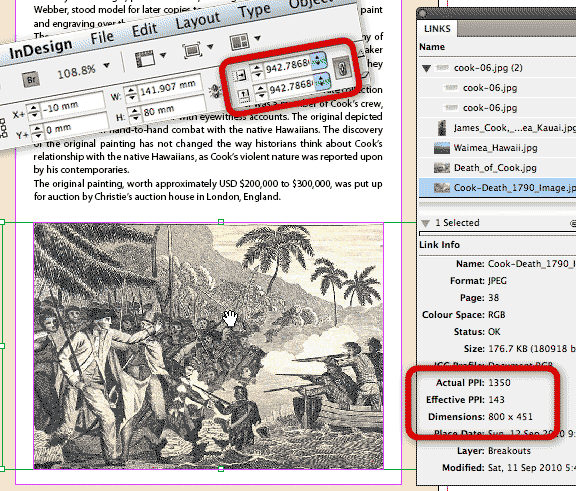
The pixel dimensions of the source image that is placed in InDesign is 800 x 451 pixels.
The Actual PPI for the placed image is 1350 ppi. This is the true image resolution of the source file that InDesign references in the Links panel.
The Effective PPI setting for the image is much, much lower at 143ppi, due to the fact that I’ve increased the image size in InDesign by well over 900 per cent (942.78% to be exact).
It’s time to see what happens to this image when we export the InDesign document to EPUB. I’m working in InDesign CS5 by the way.
Exporting to EPUB with Formatted unchecked
The Images section in the Digital Editions Export Options dialog provides us with an option named “Formatted”. First of all let’s look at what happens when we export our images with this option disabled.

What’s going to happen? Well, no matter which option we choose here, the resulting images always turns into a file a 72ppi resolution.
When we use the unformatted setting, InDesign grabs the original source image, and basically changes the image resolution from the original resolution (1350ppi) to the target resolution (72ppi), whilst retaining the physical width and height of the image and throwing out a bucket load of pixels…
Without grabbing a calculator let’s jump across to Photoshop and have a look what actually happens… I’m looking at Image > Image Size dialog here…
Here are the settings of the unaltered image:

Notice this image is only 1.51cm x 0.85cm in physical dimensions? That’s smaller than the average postage stamp 🙂 Next with the Resample Image option enabled, let’s change the Resolution to 72ppi and check-out the new pixel dimensions.

Wow! Yes, you’re not imagining things here. What we are seeing is the result of resampling — the throwing out or inserting of pixels —We’re left with a measly 43 x 24 pixels, and that my dear friends is all we’d end up with for this image in the resulting EPUB.
Here’s the result (grab your magnifying glass to check things out 😉 )

Exporting to EPUB with Formatted checked
So would the result be any better if we enable the Formatted checkbox in the Digital Editions Export Options dialog? I’m afraid not.
What the formatted option does differently in comparison is that:
- if we’ve added a border to our image, or a drop shadow or other effect etc., the resulting EPUB graphic will retain the applied formatting settings.
- addtionally, if we’ve masked part of the image away, the resulting EPUB graphic will be cropped to only display that part of the image that is visible in InDesign.
- lastly, if the image has been scaled up or down, the same scaling percentage will be applied to the image after it first has its resolution changed to 72ppi
Note: keep in mind that images that bleed off the page, will have their bleed area included in the resulting EPUB output when the Formatted option is enabled. You’d need to mask the images to the page edge prior to generating the EPUB to obtain a crop area that matches the image area you see on the page itself in InDesign.
It’s this last setting that once again, can result in some highly unexpected results.
If we look at the previous image. We’ve already seen what happens when the image is resampled to 72ppi — it looses most of its pixels and we’re left with just a handful of them —. So what happens to if after this initial resampling we apply our 942.78% enlargement?
I’m jumping back into Photoshop for a second to demo what’s going to happen.

Ok, cool! So we end up with more pixels then the previous scenario. Unfortunately we’re cheering a little too early. Let’s look at the result 🙂

In a nutshell, it’s the resampling that occurs that causes the various quality issues we’re seeing in the resulting EPUBs.
So how can we control our image qualities better when creating EPUBs from InDesign?
Getting the better image results in EPUB
There are various things we can do.
If we take things out of InDesign what we could do is run our images through an image processor — e.g. Photoshop’s File > Scripts > Image Processor — and ensure they all are rendered to have optimum pixel dimensions for EPUB purposes (between 300 and 600px), then ‘break’-open the .EPUB file and swap out the exported images with the separately rendered images and repackage the .EPUB file.
Another option that will increase the quality significantly, is to ensure that minimal resampling occurs when the images are exported as part of the InDesign EPUB export. To do that we’d need to ensure our images are placed at close to 72ppi and are not scaled.
If the publication you’re converting to EPUB has been published for print prior to being converted for EPUB, it might be worthwhile to first of all run a Script that ensures that all images are placed at 100% at their original image resolution (e.g. 300ppi for print). Once that step has been completed you could take the resulting collection of images and converting them to 72ppi, RGB, JPEG format. Then prior to generating the EPUB from InDesign swap the original images with their JPEG replacements. InDesign has a very cool Relink to Folder function that allows to link to similarly named images with a different file-extension that are stored in a particular directory.
If you’ve been using a particular script to perform this task let me know and I’ll gladly test it as well and give it plug at the bottom of this post 🙂
@KevinMW, you’ll probably need to test if
There are different ways of doing this (for both I think you’ll need to edit the html/css after you’ve created the EPUB) – to retain text as text (one thing to remember is that if someone makes the text bigger in the ereader you might get some unexpected results.):
Incidentally: You don’t need to combine text / image in Photoshop, You can group the text frame and image and use Object Export Options to Rasterize the group.
Thank you Stephen Douglas!
Hi Cari. I am trying to create an ebook using in design. It is a children’s book with a large image and text underneath it. When I export my files to EBUB and look at it on my ipod/ipad, the images look pretty good. The text however, flows with the sizing regulated by the device. How can I keep the text where I want it without it reflowing. I could place it all in photoshop and flatten it and all one image, but I think it will not look as good as if it were text. Do you have any suggestions?
hi Kevin, You’ll have to edit the .html and .css file that is generated for those pages where you want the text to flow ‘over’ the image. Currently export from InDesign is ‘linear’… But with css and html you place the photo AND text into a ‘div’ (by way of ‘grouping them), then adjusting the properties for the image css and text css to position them. Cari
@Kari
Hi
Basically I have created a book in indesign 5.5 about 70 pages. It has images placed on facing pages and background images on each chapter page.
However I am having trouble publishing it for ePub format. Can you help?
Thanks
James
Hi James, the best place to go for free support, is forums.adobe.com, there is a large community of colleagues, adobe employees, and experts that monitor these forums and volunteer many hours of their time helping people out. However, you’ll probably find that if you post the question as you’ve posted in in the comments, people would require more information. For instance on what you have already tried and how you have the document set-up. Have you looked at the InDesign Help that is available for EPUBs and tv.adobe.com yet? — Cari
@Kruegerg … It depends on the publication you are converting in all honesty… My experience is that the easiest way to control the images is to ‘swap them out’ once the EPUB has been created from InDesign.
Problem with InDesign is that the amount of pixels it generates out of an image can vary depending on the physical print size of the publication. I was working on a mini-book series the other week, and found that although exporting at 150ppi for EPUB, the image were only 400px wide… which meant that in the EPUB they were stretched to the limit to display at 100% page-width… I could have opted to increase export res. to 300ppi, but I prefer to have control over image quality more… so I tend to open them all up in Photoshop and use ‘Save for Web and Devices’ instead 🙂 and swap them out.
This is a task easily done with something like Oxygen XML Author after you’ve created your EPUB.
— Cari
Hi Cari
I’ve seen a couple of posts regarding image quality specifications for epubs. We are primarily a print publisher and want to take our InDesign files using hi res images (300dpi) reflowed into a new template for producing epubs. Since our physical print books are “highly designed” with elements that won’t render well in epubs, we’ve created a template that is “stripped down” and linear in styling. To not add extra steps in our workflow, we’d like to utilize the same 300 dpi CMYK Tiff images used for the print book. Is this wrong or unacceptable? Eventually we’ll want to export to epub right from InDesign, will the images in the resulting file be adjusted on export?
I keep seeing different recommendations on this. Some say use them, some say convert them. What’s your opinion?
There is a VERY easy way around this, post-export, using Calibre (free).
http://calibre-ebook.com/
After installing Calibre:
1 – Add the epub file to Calibre (using “Add Books”).
2 – Once the epub file is listed, right-click on the book in the list and select “Tweak Book”
3 – From the pop-up widget that appears, select “Explode ePub”
After exploding, a file folder will open, showing all the individual files used to create that epub document.
In the folder “OEBPS/images”, you will find all the graphics used to create the document.
Edit or replace those files with whatever resolution you prefer. (“_fmt” is usually added to the name of the internal epub file versions of the pics, so watch for that)
4 – Return to the Calibre pop-up widget and select “Rebuild ePub”
The temporary folder with all the files will close and your ebook will be recompiled with the changes.
Hope that helps! I make all my images very large (but smaller than 1600 X 1200) @ 132 dpi, and use these as replacements after exporting to epub. They appear crystal clear in epub on all the devices I target (iPad, Adobe Additions, Kindle, Kindle PC and Ipod Touch), and they stay that way when I convert to MOBI (also using Calibre).
Hi Steven,
Thanks for adding that for the Calibre users 🙂
I actually use Oxygen XML Author to do something similar 😉
XML Author will allow upload of images into the package file 😉 (and replace existing images).
For EPUBs destined for .MOBI conversion, I tend to reduce the pixel dimensions, so that the individual image file sizes don’t exceed 120Kb.
Cari
Thanks for all the helpful advice.
Hi Steve,
In CS5 you’d need to change the template.css and set the ‘width’ attribute which would ensure the sizing of images is always proportionate to the available screensize.
With InDesign CS5.5. this will be easier, as you can automatically control during a) at image level b) at export level how your images are sized.
CS5.5 can automatically include that as part of including image size relative to the page size.
All of my original images are high resolution, and I have embedded them in the text box at the appropriate point and used formatting to centre them.
However, when I look at them in Digital Editions, I can’t find any way of zooming into them. If I hit the ‘increase’ or ‘decrease’ buttons, it will increase and decrease the size of the caption and text on the page, but the images remain the same size in the window.
Will people be able to zoom in to the images on other ebook readers, such as the iPad?
Hi Cari
I’m relieved to learn that I am not alone in struggling with graphics export to epub!
In an effort to use the same graphic files for both print and epub, I now make images for print 130-140% larger than required, and when I export to .epub I deselect ‘formatting’ option. It’s not ideal as I lose any cropping/rotation of images in InDesign.
I am glad to hear that Adobe are addressing this issue.
Hi Cari,
I am caught needing to create an epub for work without having any prior experience in technical type stuff so wondering if you can help.
I have been reworking an indesign file and having real issues with images. They all come out tiny and not particularly clear. All of the things you said were very helpful but what I am stuck on is how to ‘crack into’ the mobi file I have created and change the images over.
Could you direct me please?
Thanks
@Jazzy
First of all when building EPUBs pixels-dimensions are more important than resolution. I generally cheat a little and replace the images exported from InDesign to EPUB with once that have optimal pixel dimensions. Because if you place images ‘small’ in InDesign you’d end up with loss of pixesl… The pixel dimension for full-screen viewing would vary a little for the devices you’re working on, but you might want to use the iBooks maximum size recommendation 1600 x 1200 (see also link to Liz Castro site above).
I’d probably opt for sRGB. Which is commonly used for Web as well as far as I’m aware.
When you are talking about ‘Panning’, I’m wondering whether you might need to look at the Adobe Digital Publishing Solution, because the Pan-Feature is supported in this. However, EPUB does support GIF as a file format, which has support for animation. I’ve not actually tested this to see how it works in various eReaders, but my guess is that it would work. Just be aware of your file size when you are doing this.
Hi Cari
I want to create children’s colour illustrated e-books and move around in the images in the book; zoom in and pan like a movie camera and I want to animate character in the image (Photoshop, After Effects etc).
I have original art work that needs to be scanned. My question is, what dpi resolution
is it best to have original art illustrations scanned in for use in InDesign for EPub use?
Should they be scanned at as high-resolution as possible and reduced later? Or scanned at a more moderate dpi?
Also what RGB format is best? sRGB, eciRGB (I’m in Europe), or Adobe RGB (as I will be using Adobe) Hope this isn’t too long. Best JazzyB
Thanks Cari,
I’m afraid your suggestion to cheat with images by opening the uPub file was a bit scary – so I have resized all the pics used to 72ppi and 300-600 pixel width as appropriate, renamed in a new folder and relinked. Because the larger ones don’t then fit in my page width at 100% (129mm – same as my printed paperback) I’ve had to reduce to fit in InDesign, then NOT use the ‘format’ option on export to ePub. It has worked and improved my pictures on the ePub file. I did have to recreate some pictures where I had cropped, or rotated or combined differently resized images – but at least I’ve found a ‘belt and braces’ solution. Still got a few files to work on for the current book, then I can start converting previous books to offer to the market.
Wish me luck!
@Sylvia:
ppi is a term that generally refers to resolution reference for devices/applications that use pixels to display graphics. E.g. Photoshop on a monitor uses PPI.
dpi is a term more commonly used for output devices such as printers and plate/imagesetters. An digital plate maker can build images up with using very high dpi settings 1200-2400dpi. For image artwork that is ‘screened’ at 1200-2400dpi, printers will ask for 300-350dpi images… but really in Photoshop/Resolution terms they are asking for 300-350ppi.
For EPUB publishing resolution things become a little different again, because the tablets that are being released have different screen-resolutions. So generally we’d look at physical pixels dimensions.
Liz Castro has just written a nice post on her blog that mentions maximum image size. In which she points to an iPad/iBooks recommendation that an image is no larger than 1600 x 1200 pixels.
See the full post here: http://www.pigsgourdsandwikis.com/2011/01/expandible-photo-blocks-in-ibooks-on.html
Cari
@Sylvia 🙂
I have to admit you can actually cheat when it comes to images 🙂
Let InDesign do the automatic conversion and downsampling and have a close look at the naming convention it uses for the images by opening the .EPUB file.
You can then swap them out for some images that have optimal pixel dimensions.
This is a technique that a lot of EPUB publishers will use, as it gives you 100% control over what happens with your image quality.
Cari
Ooops! Just noticed my mistake confusing 300px with 300dpi – also I assume ppi is the same as dpi – dots per inch – resolution.
Will reformat a sample at 72dpi & see it pic will fit on my page & come up at improved resolution on ePub.
Sylvia
I’m confused!
Do I place images at 300dpi for ePub export docs (the dpi used on images for most of my original paperback book that I am having to recreate for eBooks), or do I convert all pics to 72dpi, or does InDesign Export to DigEd do that?
I had tried reformatting big pics to about 150dpi before seeing this and full width pics always end up about half ‘digital images’ page width, whether on wide PC screen or narrow eReader screen.
Perhaps it would be easier to convert pics to an Optimum pixel width – but what should it be?
I did post another question on optimising images and found this since, but my question is not really answered here for me yet.
Sylvia
@Gary,
that really depends on the eReader you are using on your iPad as far as I’m aware.
Cari
@Gayle
for EPUB InDesign converts everything to 72ppi, for PDF what happens depends on your PDF Settings… If you want to convert images during PDF conversion to low-resolution as well, you can opt to drop in low-res images in InDesign … 300ppi is only required if you send your files to a commercial printer.
Cari
Do images have to be 300dpi
in an indesign file before exporting to EPUB.
Or before exporting to a pdf that will be exported to an iBook?
One more question then. It would be a better use of the iPad display if we could display our images in landscape mode. But as I understand it, when the viewer rotates the iPad to that orientation, the screen becomes a spread of two vertical pages.
Is there any way the viewer can disable this?
Got it thanks.
Thank you for your response. Are you suggesting I increase the size to whatever that will be in pixel size so that when resized in the iPad it will be 132dpi (heavy math lifting required).?
@Gary.
When working on images that are displayed on screen-devices, it is the pixel dimension that counts. E.g. If I have a screen that is 2×2 inches in size, and it has a resolution of 100ppi, the screen would display 200 x 200 pixels. The same applies for the iPad. Hence the screen resolution of 132ppi itself is not as important as the pixel dimensions the devices has. Hope this makes sense.
Because InDesign will resample your image to 72ppi, it’s better in this case to ensure the resolution of your image is 72ppi and in Photoshop’s Image Size dialog box focus on the pixel dimensions of the image (top part of the dialog box).
@Gary
iPad screen specifications are 1024-by-768-pixel resolution at 132 pixels per inch (ppi). If you are purely designing for iPad, I would opt to build the InDesign document no larger than the screen dimension size of the iPad. As EPUB exports to 72ppi from InDesign, what I would suggest is that you size your images to the maximum pixel dimension you want to place them at in your design, and leave the resolution at 72ppi.
I want to prepare a virtual coffee table book, primarily images, very little text, and specifically for the iPad. The iPad resolution is 132dpi or ppi and my images at 72dpi will look like the proverbial dog’s breakfast on the iPad.
I am working with InDesign CS5. How can I increase the resolution to 132? Do I need to edit and swap out the 72dpi images with 132dpi images?
@David couldn’t agree more — on all counts that is — 🙂 and I’m convinced that given some time this UI will improve. I would definitely like to see more choice in output settings for images, possibly even an option that sets a preferred pixel dimension, as generally that’s what you’d go with for EPUBs 🙂
I don’t recall the settings, sorry. And I can’t bear to try it again, as I disdain photoshop eps files.
As for whether this is intended behavior: I doubt it. I think the whole epub feature is just immature. It works, but could work far better/more intuitively, etc. The good news is that Adobe is aware of this and they keep working on making things better.
@David
The PDF does change the behavior. It only applies the 72ppi change – similar to ‘unformatted’ – and ignores the scaling factor in contrast to the tiff/psd formats I used to test.
But I can’t replicate this for EPS. Using Preview TIFF (8 bits/pixel) and Binary encoding. What EPS settings did you use?
Reaaaaalllly starting to wonder if this is intended behavior?
@David interesting 🙂 Wow.
Looking at how the formatted option currently seems to work, I wonder if all the behavior we’re seeing is intentional, and whether there will be some amendments to how it behaves in the future. I definitely feel there’s room for improvement 🙂
Here’s something crazy: If you use Photoshop EPS or Photoshop PDF files instead — and turn on Formatted — the images come out much better! No need to downsample the images.
Hi Cari…
Could Link Optimizer from Zevrix be useful to do the final steps and to put all images at 100% – 72ppi, RGB, JPEG format?
http://zevrix.com/linkoptimizer.php
@Jean-Claude: Yes, I think Link Optimizer is probably one of the better tools out there for this type of job. It’s not a cheap add-on for InDesign @ U$259.95 but for any organisation handling many what I call ‘legacy’ InDesign files that are going to be converted it does a wonderful job. It does a good job at opening each image in Photoshop and adjusting image resolution etc. One thing I would probably add as you run the script is an option for the user to allocate a new directory in which updated image links are stored and have the Optimizer relink to the images in this directory. Presently you need to remember to create a back-up copy of your image files first.